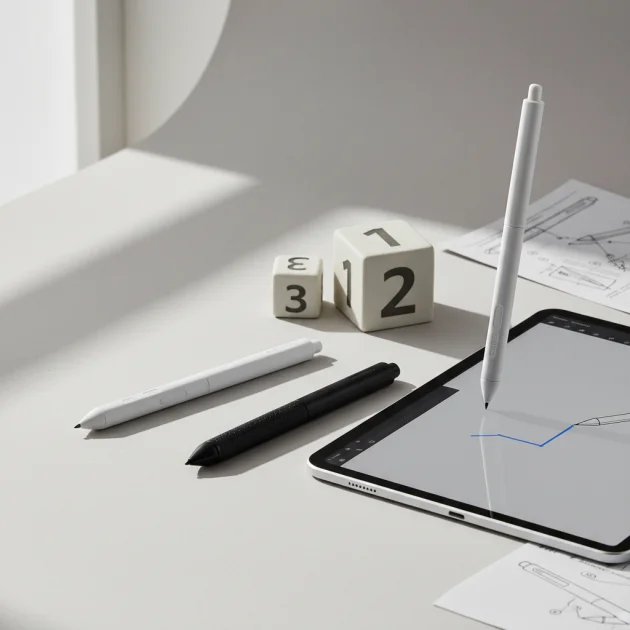
While Samsung does not manufacture stylus pens specifically for the iPad, several third-party styluses offer excellent compatibility and performance, mimicking the Samsung S Pen experience on Apple tablets. The top picks for iPad users seeking a Samsung-like stylus include the Logitech Crayon for general use, the Adonit Note+ for artists needing pressure sensitivity, and the Wacom Bamboo Fineline 3 for precise writing and sketching.
Quick comparison
| Model | Pressure Sensitivity | Palm Rejection | Tilt Support | Charging Method |
|---|---|---|---|---|
| Logitech Crayon | No | Yes | Yes | Lightning/USB-C |
| Adonit Note+ | 2048 levels | Yes | Yes | USB-C |
| Wacom Bamboo Fineline 3 | 1024 levels | Yes | No | Micro USB |
What iPad needs from a stylus pen
An iPad stylus requires specific features to deliver a seamless and productive experience. Foremost is palm rejection, which allows users to rest their hand on the screen without interfering with the stylus input. This is crucial for comfortable drawing and writing. Pressure sensitivity is another vital aspect, enabling varied line thickness and opacity based on how hard the user presses, essential for artistic applications. Tilt support further enhances drawing capabilities, allowing for shading and broader strokes by angling the stylus. Low latency ensures that the digital ink appears almost instantly, mirroring natural pen-on-paper feel. Battery life and charging method are practical considerations; a long-lasting battery and convenient charging, such as USB-C or magnetic attachment, improve usability. Finally, build quality and ergonomics contribute to a comfortable grip and durability, making the stylus a reliable tool for extended use on an iPad. For shop curated reviews on this site.
Detailed reviews
Logitech Crayon
The Logitech Crayon offers a robust and reliable experience for iPad users, designed with a focus on simplicity and durability. While it lacks pressure sensitivity, it excels in providing precise input for drawing, note-taking, and navigating the iPad interface. Its key feature is excellent palm rejection, ensuring a natural writing posture without accidental marks. The Crayon also supports tilt functionality, allowing users to vary line thickness by angling the pen, which is beneficial for shading and artistic effects. It connects instantly to the iPad without complex pairing, making it highly user-friendly. The aluminum body is sturdy and comfortable to hold, and its flat side prevents it from rolling off surfaces. Charging is convenient via a Lightning or USB-C port, depending on the model, offering up to 7.5 hours of active writing time on a single charge. This stylus is an ideal choice for students and professionals who need a dependable tool for everyday tasks.
Adonit Note+
The Adonit Note+ stands out with its impressive pressure sensitivity, offering 2048 levels, which provides a nuanced and expressive drawing experience on the iPad. This makes it a strong contender for artists and designers who require fine control over their strokes. It features robust palm rejection, allowing users to rest their hand comfortably on the screen while working. Tilt support is also included, enhancing its versatility for various artistic techniques, such as shading. The Note+ connects via Bluetooth, offering programmable shortcut buttons for quick access to frequently used tools, which streamlines workflow. Its design is sleek and comfortable, resembling a traditional pen. Charging is handled via a USB-C port, providing a quick and efficient power-up. With its advanced features, the Adonit Note+ delivers a premium stylus experience, closely emulating the precision and responsiveness found in high-end Samsung S Pens, making it suitable for demanding creative tasks.
Wacom Bamboo Fineline 3
The Wacom Bamboo Fineline 3 is a fine-tip stylus designed for precise writing and sketching on iPad devices. It offers 1024 levels of pressure sensitivity, providing a good balance between control and expressiveness for detailed work. This stylus features excellent palm rejection, allowing for a natural and comfortable writing posture without unintended marks. While it does not support tilt functionality, its fine tip ensures accuracy for intricate tasks. The Bamboo Fineline 3 connects via Bluetooth, offering a customizable shortcut button for quick access to app-specific functions. Its ergonomic design provides a comfortable grip, reducing fatigue during long sessions. The stylus charges via a Micro USB port, and a full charge provides approximately 15 hours of continuous use, making it reliable for extended periods. It is particularly well-suited for note-takers, annotators, and those who prioritize precise line work over broad artistic strokes, offering a refined experience for productivity on the iPad.
Routine fit
Choosing the right stylus for your iPad depends heavily on your daily routine and primary use cases. For students and professionals who primarily take notes, annotate documents, or navigate the iPad interface, a stylus with excellent palm rejection and reliable precision, like the Logitech Crayon, is ideal. Its ease of use and durability make it perfect for daily academic or office tasks. Artists and graphic designers requiring nuanced control over their strokes, pressure sensitivity, and tilt support will find the Adonit Note+ more suitable. Its advanced features allow for detailed illustrations and expressive artwork. For users who prioritize fine-tip accuracy for detailed writing or intricate sketches, the Wacom Bamboo Fineline 3 offers a balanced solution. Consider your main activities to select a stylus that enhances your iPad experience most effectively.
FAQs
Can I use a Samsung S Pen directly with an iPad?
No, a Samsung S Pen cannot be used directly with an iPad. The S Pen uses a proprietary Wacom EMR technology that is not compatible with the iPad’s screen digitizer. iPads are designed to work with Apple Pencil or third-party styluses that utilize Bluetooth or specific capacitive technologies compatible with Apple devices. Attempting to use an S Pen on an iPad will not yield any input or functionality. Users seeking a Samsung-like experience on their iPad should explore compatible third-party alternatives.
What features should I prioritize in a stylus for drawing on iPad?
For drawing on an iPad, prioritize pressure sensitivity, palm rejection, and tilt support. Pressure sensitivity allows for varying line thickness and opacity, crucial for expressive artwork. Palm rejection ensures you can rest your hand on the screen comfortably without making unwanted marks. Tilt support enables shading and broader strokes by angling the stylus, mimicking traditional art tools. Low latency is also important for a natural drawing feel, ensuring the digital ink appears instantly as you draw. These features collectively enhance the artistic experience on an iPad.
Are there any styluses that magnetically attach to the iPad like Apple Pencil?
Yes, several third-party styluses offer magnetic attachment to the iPad, similar to the Apple Pencil. While these are not Samsung-branded, they provide a convenient way to store and charge the stylus. Examples include some models from Logitech and various generic styluses available on the market. When purchasing, check the product specifications to confirm magnetic attachment compatibility with your specific iPad model, as this feature often varies between different iPad generations and stylus designs. This feature enhances portability and reduces the risk of misplacing the stylus.
How important is battery life for an iPad stylus?
Battery life is very important for an iPad stylus, especially for users who rely on it for extended periods of drawing, writing, or navigation. A stylus with a long battery life reduces the frequency of charging, ensuring uninterrupted workflow. Most quality styluses offer between 8 to 15 hours of active use on a single charge. Consider your typical usage patterns; if you use the stylus for several hours daily, a longer battery life is a significant advantage. Convenient charging methods, such as USB-C, also contribute to overall usability.
Can I use a stylus for gaming on an iPad?
Yes, you can use a stylus for gaming on an iPad, particularly for games that involve drawing, precise tapping, or puzzle-solving. While not all games are optimized for stylus input, many casual games and creative apps can benefit from the precision a stylus offers over finger input. For fast-paced action games, a stylus might not always be ideal due to potential latency or the need for rapid multi-touch gestures. However, for strategy games, point-and-click adventures, or drawing-based games, a stylus can enhance the gaming experience by providing more accurate control.
Verdict
While a direct Samsung stylus pen for iPad does not exist, the market offers excellent third-party alternatives that deliver a comparable experience. For general use, note-taking, and durability, the Logitech Crayon stands out. Artists and designers requiring advanced pressure sensitivity and tilt support will find the Adonit Note+ to be a superior choice. For precise writing and detailed sketching, the Wacom Bamboo Fineline 3 offers reliable performance. Ultimately, the best stylus for your iPad depends on your specific needs and how you intend to integrate it into your daily routine, ensuring a productive and enjoyable digital experience.
Frequently Asked Questions
Can I use a Samsung S Pen directly with an iPad?
No, a Samsung S Pen cannot be used directly with an iPad because it uses proprietary Wacom EMR technology incompatible with iPad screens. iPads are designed for Apple Pencil or third-party styluses that use Bluetooth or specific capacitive technologies. Users should explore compatible third-party alternatives for a Samsung-like experience.
What features should I prioritize in a stylus for drawing on iPad?
For drawing on an iPad, prioritize pressure sensitivity, palm rejection, and tilt support. Pressure sensitivity allows for varying line thickness and opacity, crucial for expressive artwork. Palm rejection ensures comfortable hand placement without unwanted marks, and tilt support enables shading. Low latency is also important for a natural drawing feel.
Are there any styluses that magnetically attach to the iPad like Apple Pencil?
Yes, several third-party styluses offer magnetic attachment to the iPad, similar to the Apple Pencil, providing convenient storage and charging. Examples include certain Logitech models and various generic styluses. Always check product specifications for magnetic attachment compatibility with your specific iPad model and generation.
How important is battery life for an iPad stylus?
Battery life is very important for an iPad stylus, especially for users who rely on it for extended periods. A stylus with a long battery life, typically 8 to 15 hours of active use, reduces charging frequency and ensures uninterrupted workflow. Convenient charging methods like USB-C also enhance overall usability.
Can I use a stylus for gaming on an iPad?
Yes, you can use a stylus for gaming on an iPad, particularly for games involving drawing, precise tapping, or puzzle-solving. Many casual games and creative apps benefit from the precision a stylus offers over finger input. For strategy games or drawing-based games, a stylus can significantly enhance the gaming experience with more accurate control.
Get our weekly buyer guide
Practical specs, not advice. Unsubscribe anytime.

I was really skeptical about finding a good ‘Samsung-like’ stylus for my iPad, but the Adonit Note+ totally delivered. The pressure sensitivity is fantastic for my digital art, and it feels super natural to use. Definitely recommend it if you’re an artist looking for that S Pen feel on an Apple tablet.
The Logitech Crayon has been a solid choice for my general note-taking and navigating on my iPad. I appreciate the palm rejection feature; it makes a huge difference. My only minor gripe is that it doesn’t have pressure sensitivity, but for everyday tasks, it’s perfectly fine and very reliable.
Finally, a stylus that actually works well with my iPad and gives me the precision I missed from my old Samsung tablet! The palm rejection on the Adonit Note+ is a game-changer for me. I can lean my hand on the screen without any issues, which is crucial for my longer drawing sessions.
I got the Wacom Bamboo Fineline 3 hoping for really precise writing, and it’s decent, but I was a bit disappointed that it doesn’t have tilt support. It makes some of my sketching feel a little less natural than I’d hoped. The Micro USB charging is also a bit outdated compared to my other devices.