The HP Tilt Pen is widely considered the best HP stylus pen for Windows laptops, offering advanced features like tilt support and 4096 levels of pressure sensitivity for a superior digital inking experience. Choosing the right stylus pen for your HP Windows laptop can significantly enhance productivity and creativity. Whether you are a student, artist, or business professional, a well-matched stylus transforms your device into a versatile tool for note-taking, drawing, and precise navigation.
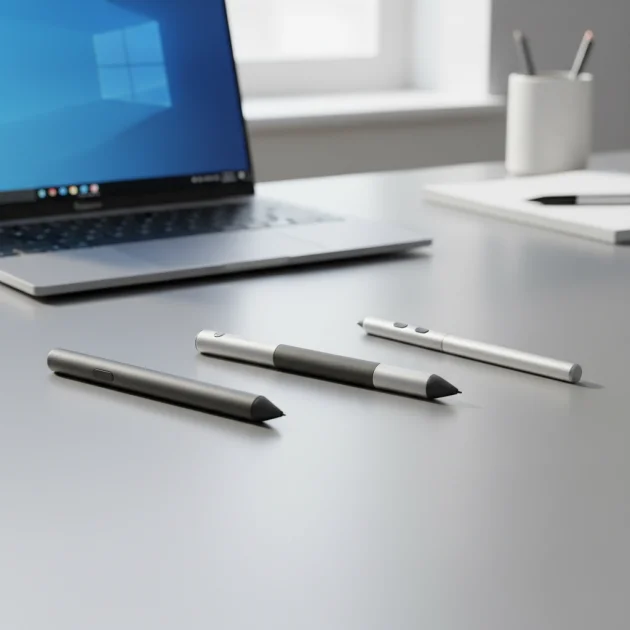
Quick comparison
| Model | Pressure Levels | Tilt Support | Battery Type | Compatibility |
|---|---|---|---|---|
| HP Tilt Pen | 4096 | Yes | Rechargeable (USB-C) | HP Spectre x360, HP ENVY x360 |
| HP Pen (Active Pen) | 2048 | No | AAAA Battery | HP Pavilion x360, HP Spectre x360 |
| HP Rechargeable MPP 2.0 Tilt Pen | 4096 | Yes | Rechargeable (USB-C) | HP Spectre x360, HP ENVY x360, HP EliteBook x360 |
What Windows Laptops need from a stylus pen
Windows laptops, especially those with touchscreens and 2-in-1 designs, require a stylus pen that offers precision, responsiveness, and comfortable ergonomics. Key features include high pressure sensitivity, typically 2048 or 4096 levels, which allows for varied line thickness and shading based on how hard you press. Tilt support is crucial for artists, enabling natural shading effects by detecting the angle of the pen. Low latency ensures that digital ink appears on screen almost instantaneously, mimicking the feel of pen on paper. Palm rejection technology is also essential, preventing accidental marks from your hand resting on the screen. Furthermore, a stylus should have a durable tip and a comfortable grip for extended use. Battery life and charging method (rechargeable or replaceable AAAA batteries) are practical considerations, as is the presence of customizable buttons for quick access to functions like erase or right-click. Compatibility with Microsoft Pen Protocol (MPP) is vital for seamless integration with Windows Ink features. For complete reviews library on this site.
Detailed reviews
HP Tilt Pen
The HP Tilt Pen is an excellent choice for users seeking advanced functionality. It boasts 4096 levels of pressure sensitivity, providing exceptional control over line weight and opacity, making it ideal for detailed drawing and precise handwriting. A standout feature is its tilt support, which allows for natural shading and broader strokes, mimicking traditional art tools. The pen connects via Bluetooth and is powered by a rechargeable battery, typically charged via a USB-C port, offering convenience and reducing waste. Its ergonomic design ensures a comfortable grip during long creative sessions. The HP Tilt Pen often includes two customizable buttons, which can be programmed for various shortcuts, enhancing workflow efficiency. It is primarily compatible with newer HP Spectre x360 and HP ENVY x360 models, ensuring optimal performance with these devices. The build quality is premium, often featuring an aluminum body for durability.
HP Pen (Active Pen)
The HP Pen, often referred to as the HP Active Pen, is a reliable and widely compatible option for many HP Windows laptops. It offers 2048 levels of pressure sensitivity, which is sufficient for general note-taking, sketching, and navigating the interface with accuracy. While it lacks tilt support, its precision makes it a solid choice for everyday tasks. This pen typically uses a single AAAA battery, providing a decent battery life before needing replacement. Its design is straightforward and functional, often featuring two side buttons for quick access to erase and right-click functions. The HP Pen is compatible with a broader range of HP devices, including various HP Pavilion x360, HP Spectre x360, and some HP ENVY x360 models, making it a versatile accessory. It provides a smooth writing experience with good palm rejection, preventing unintended marks while you work.
HP Rechargeable MPP 2.0 Tilt Pen
The HP Rechargeable MPP 2.0 Tilt Pen represents the pinnacle of HP’s stylus technology, incorporating the latest Microsoft Pen Protocol 2.0 for enhanced performance. It delivers 4096 levels of pressure sensitivity and full tilt support, providing an incredibly natural and responsive inking experience. The MPP 2.0 standard improves latency and responsiveness, making digital drawing and writing feel even more fluid. This pen is powered by a rechargeable battery, typically via USB-C, offering extended use on a single charge. Its design is sleek and comfortable, often featuring a magnetic attachment for convenient storage on compatible laptops. The HP Rechargeable MPP 2.0 Tilt Pen is designed for premium HP devices, including the latest HP Spectre x360, HP ENVY x360, and HP EliteBook x360 series, ensuring seamless integration and optimal functionality. It is an excellent investment for professionals and artists who demand the highest level of precision and performance.
Routine fit
Integrating an HP stylus pen into your daily routine can significantly streamline various tasks. For students, it transforms note-taking, allowing for handwritten annotations directly on digital documents, highlighting, and quick diagram creation. Professionals can use it for signing digital documents, marking up presentations, or brainstorming ideas on a whiteboard application. Artists and designers benefit immensely from the precision and pressure sensitivity for detailed illustrations, digital painting, and graphic design work. Even for casual users, a stylus enhances navigation, making it easier to interact with small interface elements or simply enjoy a more tactile computing experience. The ability to quickly switch between typing and handwriting offers flexibility, adapting to different tasks and preferences throughout the day.
FAQs
What is the difference between MPP 1.51 and MPP 2.0?
MPP 2.0 (Microsoft Pen Protocol 2.0) is an advancement over MPP 1.51, offering several key improvements. The most notable enhancements include lower latency, which means less delay between pen movement and on-screen ink appearance, resulting in a more natural writing and drawing experience. MPP 2.0 also provides increased pressure sensitivity levels and often better tilt detection, allowing for more nuanced artistic expression. Additionally, MPP 2.0 pens typically feature improved battery life and more reliable connectivity. While MPP 1.51 pens are still functional, MPP 2.0 offers a superior and more responsive performance, especially for creative professionals.
Can I use any HP stylus pen with any HP Windows laptop?
No, not all HP stylus pens are universally compatible with all HP Windows laptops. Compatibility depends on the specific pen technology and the laptop’s digitizer. Most HP stylus pens use Microsoft Pen Protocol (MPP), but different versions (MPP 1.51, MPP 2.0) exist, and some laptops may only support certain versions. Always check the product specifications for both the stylus pen and your HP laptop model to ensure compatibility. Using an incompatible pen may result in no functionality, limited features, or poor performance. Refer to HP’s official support documentation for precise compatibility lists.
How do I charge my HP rechargeable stylus pen?
Most HP rechargeable stylus pens are charged via a USB-C port. You will typically find a small USB-C port on the pen itself, often covered by a cap. Simply connect a standard USB-C cable to the pen and plug the other end into a USB power adapter or a USB port on your laptop. The charging indicator light on the pen will usually illuminate during charging and turn off or change color when fully charged. Charging times can vary, but a full charge often provides many hours of use. Avoid using non-standard chargers to prevent potential damage to the pen’s battery.
What are the benefits of tilt support in a stylus pen?
Tilt support in a stylus pen allows the pen to detect its angle relative to the screen, which is particularly beneficial for artists and designers. This feature enables natural shading effects, similar to how a pencil or brush works on paper. By tilting the pen, users can create broader strokes or subtle shading, adding depth and realism to their digital artwork. Without tilt support, shading often requires more complex techniques or specific brush settings in software. For general note-taking, tilt support is less critical but still contributes to a more natural and expressive writing experience.
How do I customize the buttons on my HP stylus pen?
Customizing the buttons on your HP stylus pen typically involves using the HP Pen Control application or the Windows Pen & Windows Ink settings. If your HP laptop has the HP Pen Control app pre-installed, open it to access options for remapping the pen’s buttons to various functions, such as launching specific applications, performing right-clicks, or activating eraser tools. Alternatively, navigate to ‘Settings’ > ‘Devices’ > ‘Pen & Windows Ink’ in Windows. Here, you can often configure the top button’s single-click, double-click, and press-and-hold actions. Ensure your pen is paired via Bluetooth for these settings to be recognized.
Verdict
For HP Windows laptop users, the HP Tilt Pen and the HP Rechargeable MPP 2.0 Tilt Pen stand out as the top choices, offering superior pressure sensitivity and crucial tilt support for creative and professional tasks. While the standard HP Pen provides reliable performance for everyday use, the advanced features of the Tilt Pens significantly enhance the digital inking experience. When selecting, prioritize compatibility with your specific HP laptop model and consider your primary use case. Investing in a high-quality HP stylus pen transforms your Windows laptop into a more versatile and intuitive tool, boosting productivity and unlocking creative potential.
Frequently Asked Questions
What is the difference between MPP 1.51 and MPP 2.0 stylus pens?
MPP 2.0 (Microsoft Pen Protocol 2.0) offers lower latency, increased pressure sensitivity, and better tilt detection compared to MPP 1.51. These enhancements result in a more natural writing and drawing experience, especially beneficial for creative professionals.
Are all HP stylus pens compatible with every HP Windows laptop?
No, not all HP stylus pens are universally compatible with all HP Windows laptops. Compatibility depends on the specific pen technology, such as MPP 1.51 or MPP 2.0, and the laptop's digitizer. Always check the product specifications for both the stylus and your HP laptop model to ensure proper functionality.
How do I charge my HP rechargeable stylus pen?
Most HP rechargeable stylus pens are charged via a USB-C port located on the pen itself. Simply connect a standard USB-C cable to the pen and plug the other end into a USB power adapter or your laptop. The charging indicator light will typically illuminate during charging and change color when fully charged.
What are the main benefits of tilt support in a stylus pen?
Tilt support in a stylus pen allows it to detect its angle relative to the screen, which is highly beneficial for artists and designers. This feature enables natural shading effects and broader strokes, similar to traditional art tools, adding depth and realism to digital artwork.
How can I customize the buttons on my HP stylus pen?
Customizing HP stylus pen buttons typically involves using the HP Pen Control application or the Windows Pen & Windows Ink settings. In these settings, you can remap buttons for functions like launching applications, right-clicks, or eraser tools. Ensure your pen is paired via Bluetooth for these settings to be recognized.
Get our weekly buyer guide
Practical specs, not advice. Unsubscribe anytime.

I finally upgraded to the HP Tilt Pen for my Spectre x360, and it’s a game-changer! The 4096 levels of pressure sensitivity make such a difference when I’m sketching. It feels incredibly natural, almost like drawing on paper. Definitely worth the investment for anyone serious about digital art or detailed note-taking.
The HP Rechargeable MPP 2.0 Tilt Pen is fantastic! I use it daily with my HP ENVY x360 for work, and the tilt support is a huge plus for shading in my diagrams. The USB-C charging is super convenient, and it holds a charge for a long time. It really does transform my laptop into a much more versatile tool.
I’ve been using the HP Pen (Active Pen) with my Pavilion x360 for a few months now. It’s pretty good for general note-taking and navigating, and the 2048 pressure levels are decent. My only minor gripe is that it uses AAAA batteries, which aren’t always easy to find. I wish it was rechargeable like some of the other models.