The iPad Air 2 does not support the Apple Pencil (1st or 2nd generation). Instead, users can choose from a wide range of third-party passive and active stylus pens to enhance their experience for tasks like note-taking, drawing, and navigation. Active styluses, which are battery-powered and often connect via Bluetooth, offer advanced features such as pressure sensitivity and palm rejection, making them ideal for creative and professional applications on the iPad Air 2.
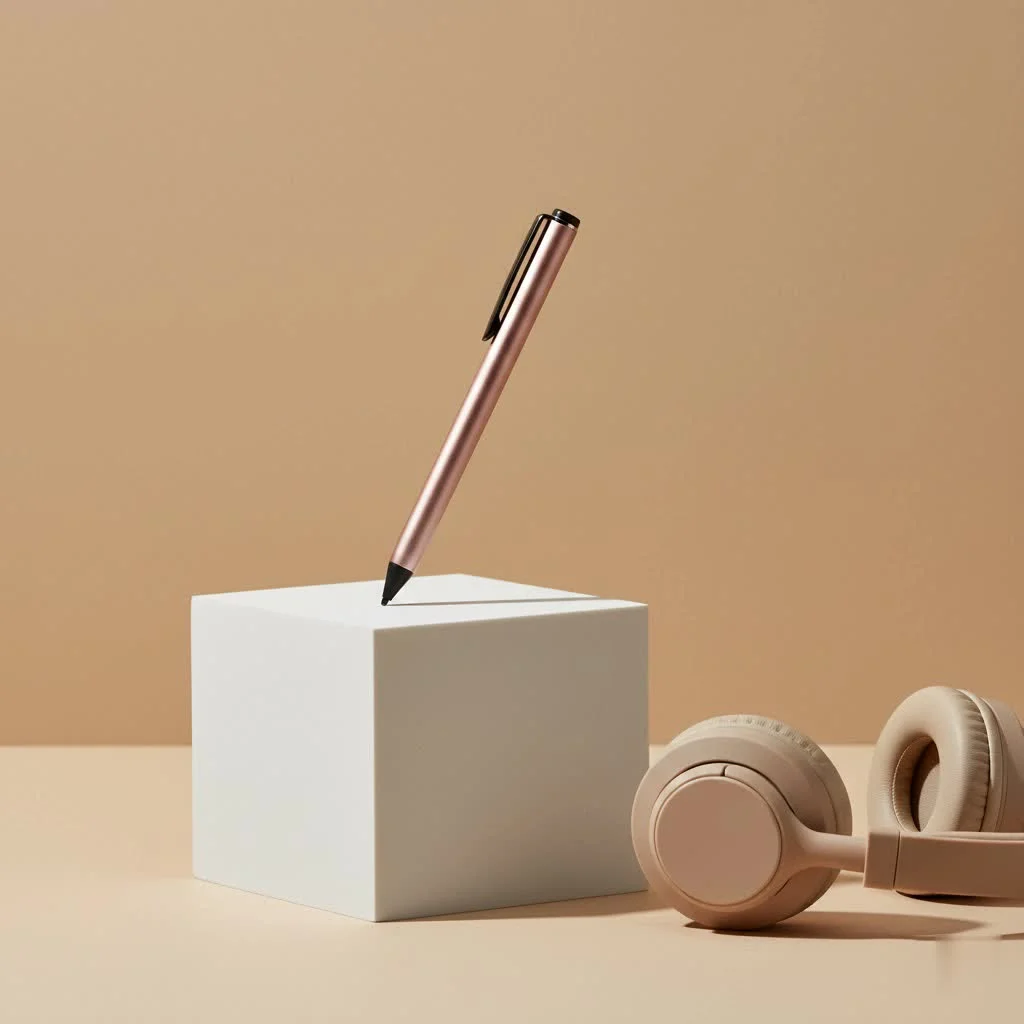
Many users find themselves asking, “Does Apple Pencil work with iPad Air 2?” The short answer is no. Apple Pencils, both 1st and 2nd generation, are not compatible with the iPad Air 2. This means we’ll be exploring the best third-party options that offer excellent functionality and enhance your iPad Air 2 experience.
The Evolution of Stylus Pens: From Simple Sticks to Smart Tools
Believe it or not, stylus pens have been around for ages, long before touchscreens existed. Early styluses were simple pointed tools used for writing on wax tablets or papyrus. Fast forward to the digital age, and the concept of a stylus evolved dramatically. Initially, for capacitive touchscreens, we had basic, passive styluses – essentially just a finger extender. These were great for keeping fingerprints off your screen but lacked precision and advanced features.
The real major upgrade came with active styluses. These battery-powered devices boast finer tips, pressure sensitivity, and often connect via Bluetooth to enable features like palm rejection and shortcut buttons. While the iPad Air 2, released before the Apple Pencil era, benefits from many of these third-party active styluses, it’s important to understand their capabilities and limitations. The journey of the stylus has been one of continuous innovation, aiming to bridge the gap between digital and traditional writing or drawing experiences.
Deciphering the World of Stylus Pens: Types and Key Features
When it comes to a stylus pen for iPad Air 2, you’ll generally encounter two main categories: passive and active.
Passive Stylus Pens: The Everyday Companion
Passive styluses, also known as capacitive styluses, are the simplest form. They don’t require batteries or Bluetooth connectivity. They work by mimicking the electrical conductivity of your finger, making them compatible with any capacitive touchscreen.
- Pros: Affordable, no charging needed, universal compatibility.
- Cons: Lack advanced features like pressure sensitivity and palm rejection, generally have a thicker tip, which can reduce precision.
Active Stylus Pens: The Smart Performer
Active styluses, on the other hand, are where the magic happens for more intricate tasks on your iPad Air 2. These pens contain internal components that communicate with your iPad’s screen.
- Connectivity: Many connect via Bluetooth, enabling advanced features.
- Pressure Sensitivity: A crucial feature for artists, allowing lines to vary in thickness and opacity based on how hard you press.
- Palm Rejection: This clever technology allows you to rest your hand on the screen while drawing or writing without leaving unwanted marks. palm rejection on older iPads like the Air 2, even with active styluses, can sometimes be unreliable and may require a drawing glove for optimal performance.
- Shortcut Buttons: Some active styluses include programmable buttons for quick access to tools like an eraser or undo function.
Stylus Tip Materials: What’s the Difference?
|
Our Picks for the Best Stylus Pen in 2026
As an Amazon Associate I earn from qualifying purchases.
|
||
| Num | Product | Action |
|---|---|---|
| 1 | Bopomofo Stylus (5 Pcs),2-in-1 Stylus Pen for Touchscreen, High Precision and Sensitivity, Suitable for iPhone/ipad/Android Tablets, Compatible with Touch Screens,Black |

|
| 2 | Metapen Pencil A8 V4 for iPad 2018-2025, Upgrade Magnetic Attraction, 2X Fast Charge, Low Latency Stylus Pen for iPad 11-6th Gen, Pro 12.9/11/13-inch M4/M5, Air 3/4/5/M2/M3, Mini 5/6/7th A17 Pro |
|
| 3 | Bopomofo Stylus (5 Pcs), 2-in-1 Stylus Pen for Touch Screen, High Precision and Sensitivity, Suitable for iPhone/ipad/Android Tablets, Compatible with Touch Screens (Black/White/Blue/Rose Gold/Silver) |
|
| 4 | Bopomofo Stylus (10 Pcs), 2-in-1 Stylus Pen for Touchscreen, High Precision and Sensitivity, Suitable for iPhone/ipad/Android Tablets, Compatible with Touch Screens,Black/White |
|
| 5 | Metapen Pencil A8 for Apple iPad 2018-2025, (2X Faster Charge), Tilt Sensitivity, Pixel Precision, Stylus Pen for iPad 11/10/9/8/7/6th Gen, Pro 12.9/11/13-inch M4, Air 3/4/5/M2/M3, Mini 5/6th, Blue |
|
| 6 | Metapen Pencil A8 for Apple iPad 2018-2025, (2X Faster Charge), Tilt Sensitivity, Pixel Precision, Stylus Pen for iPad 11/10/9/8/7/6th Gen, Pro 12.9/11/13-inch M4, Air 3/4/5/M2/M3, Mini 5/6th, Black |
|
| 7 | Metapen Pencil A8 for Apple iPad 2018-2025, (2X Faster Charge), Tilt Sensitivity, Pixel Precision, Stylus Pen for iPad 11/10/9/8/7/6th Gen, Pro 12.9/11/13-inch M4, Air 3/4/5/M2/M3, Mini 5/6th, White |
|
| 8 | Metapen Pencil A8 for Apple iPad 2018-2025, (2X Faster Charge), Tilt Sensitivity, Pixel Precision, Stylus Pen for iPad 11/10/9/8/7/6th Gen, Pro 12.9/11/13-inch M4, Air 3/4/5/M2/M3, Mini 5/6th, Green |
|
| 9 | Bopomofo Stylus (5 Pcs),2-in-1 Stylus Pen for Touchscreen, High Precision and Sensitivity, Suitable for iPhone/ipad/Android Tablets, Compatible with Touch Screens,Blue |
|
| 10 | Metapen Pencil A8 for Apple iPad 2018-2025, (2X Faster Charge), Tilt Sensitivity, Pixel Precision, Stylus Pen for iPad 11/10/9/8/7/6th Gen, Pro 12.9/11/13-inch M4, Air 3/4/5/M2/M3, Mini 5/6th, Grey |
|
The material of your stylus tip also plays a role in your experience.
- Rubber Tips: Offer a softer touch, great for general navigation and basic drawing, providing a tactile feel similar to a soft pencil.
- Plastic Tips: Provide more precision, making them ideal for detailed writing and intricate artwork.
- Mesh Fiber Tips: A balanced option, offering a smooth glide and decent precision for versatile general use.
The Inner Workings: How Does a Stylus Pen Operate?
Ever wonder how a stylus pen for iPad Air 2 actually works its magic on your screen? It’s fascinating!
For passive styluses, the principle is straightforward: they conduct electricity. Your iPad’s screen uses a capacitive layer that reacts to the electrical impulses from your finger. A passive stylus simply acts as an extension of your finger, completing the circuit and allowing the iPad to register your touch. Think of it as wearing a special glove that lets you interact with the screen.
Active styluses are a bit more sophisticated. These pens contain tiny electronic components and a battery. When powered on, they emit a small electrical signal that the iPad’s screen can detect and interpret. This signal is more precise than a finger’s, allowing for finer lines and more accurate input. For features like pressure sensitivity, the stylus has internal sensors that detect how much force you’re applying. This information is then transmitted to the iPad, usually via Bluetooth, allowing compatible apps to adjust the stroke accordingly. Palm rejection in active styluses works by using a more refined signal. The iPad’s software can differentiate between the broad contact of your palm and the precise, targeted input of the stylus tip. “It’s all about how the electrical signals are interpreted,” explains Dr. Anya Sharma, a leading expert in human-computer interaction. “The newer the iPad and the more advanced the stylus, the better these interactions become, creating a seamless experience.”
Beyond Tapping: Benefits and Applications of a Stylus Pen for iPad Air 2
A stylus pen for iPad Air 2 is more than just a fancy accessory; it’s a productivity and creativity booster. Let’s dive into how it can improve your daily interactions with your device:
For the Creative Soul: Unleashing Your Inner Artist
- Digital Art: If you love to draw or paint, a stylus with pressure sensitivity can be a major upgrade. It allows for varied line weights, shading, and intricate details that are impossible with your finger. Apps like Procreate, Sketchbook, or Adobe Fresco (check compatibility for older iPads) truly shine when paired with a good stylus. You can sketch ideas, create detailed illustrations, or even paint vibrant landscapes right on your iPad Air 2.
- Graphic Design: For budding graphic designers, a stylus offers the precision needed for logo design, intricate vector work, and photo editing. It gives you the control of a traditional pen or brush in a digital environment.
For the Student or Professional: Boosting Productivity
- Note-Taking: Ditch the endless notebooks! With a stylus, you can jot down notes in your own handwriting, annotate PDFs, and highlight important sections directly on your iPad Air 2. Apps like GoodNotes, Notability, or Microsoft OneNote make this incredibly efficient. Imagine being able to quickly sketch diagrams during a lecture or sign digital documents on the fly.
- Document Markup: Reviewing documents becomes a breeze. You can easily mark up presentations, contracts, or reports with comments, drawings, and signatures, making collaboration and feedback cycles much faster.
For Everyday Use: Enhancing Your Digital Life
- Precision Navigation: Sometimes, a finger just isn’t precise enough. A stylus allows for accurate tapping on small icons, more comfortable scrolling, and a generally cleaner screen since you’re touching it less directly.
- Gaming: Certain games that require precise aiming or quick gestures can be significantly improved with a stylus, offering a more immersive and controlled gaming experience.
The versatility of a stylus pen for iPad Air 2 means it can adapt to various needs, making your device feel more intuitive and powerful.
Your Personal Stylus Matchmaker: Choosing the Right Pen
Finding the perfect stylus pen for iPad Air 2 can feel overwhelming with all the options out there. But fear not, let’s break down what to consider to make an informed decision that truly suits your needs.
Compatibility is King (and Queen!)
First and foremost, double-check compatibility. As we’ve established, Apple Pencils are a no-go for the iPad Air 2. You’ll need a third-party stylus. Look for products explicitly stating compatibility with “iPad Air 2” or “older iPad models (pre-2018).”
Active vs. Passive: What’s Your Vibe?
- If you just need basic navigation and casual tapping: A passive stylus is probably all you need. They’re affordable, require no charging, and get the job done for simple tasks.
- If you crave precision, drawing, or serious note-taking: An active stylus is your best bet. These offer finer tips, and often come with pressure sensitivity and palm rejection, significantly enhancing your creative and productive workflows. while palm rejection exists, you might still benefit from a drawing glove for the iPad Air 2 for a truly flawless experience.
Key Features to Look For:
- Pressure Sensitivity: Absolutely essential for artists. This allows for varied line thickness and opacity based on how hard you press. If you plan to sketch or paint, prioritize this feature.
- Palm Rejection: If you write or draw for extended periods, this feature prevents unintended marks from your hand resting on the screen. It’s a huge comfort factor.
- Battery Life & Charging: Active styluses need power. Consider how long the battery lasts and how it charges (e.g., USB-C, Micro-USB). A longer battery life means less interruption.
- Build Quality & Ergonomics: Does the pen feel comfortable in your hand? Is it too heavy or too light? Look for a stylus that mimics the feel of a traditional pen for a natural grip.
- App Compatibility: Some active styluses work better with specific apps. If you have a favorite drawing or note-taking app, check if the stylus has optimized performance with it.
Your Budget: What Are You Willing to Spend?
Styluses range from very affordable passive options to more premium active ones. Set a budget and look for the best features within that price range. You don’t always need the most expensive model to get great functionality.
By considering these factors, you’ll be well on your way to choosing a stylus pen for iPad Air 2 that perfectly complements your digital lifestyle.
Mastering Your Stylus Pen: Tips for Optimal Use and Care
You’ve got your fantastic new stylus pen for iPad Air 2 – now let’s make sure you get the most out of it and keep it in tip-top shape! Using a stylus effectively and maintaining it properly will ensure a smooth, long-lasting experience.
Unlock Its Full Potential: Usage Tips
- Adjust Your Grip: Just like a real pen, finding a comfortable grip is key. Experiment with different angles and hand positions to discover what feels most natural for drawing or writing on your iPad Air 2.
- Explore App Settings: Many apps offer stylus-specific settings. Dive into the preferences of your favorite note-taking or drawing applications. You might find options to fine-tune pressure sensitivity, enable specific palm rejection modes, or customize shortcut buttons on your active stylus.
- Consider a Drawing Glove: Even with styluses that boast palm rejection, older iPads like the Air 2 can sometimes be a bit finicky. A simple, inexpensive drawing glove (often with two fingers exposed) can work wonders in eliminating accidental touches and providing a smoother surface for your hand to glide on.
- Practice Makes Perfect: If you’re new to digital art or handwriting, give yourself time to adjust. Start with simple sketches or practice writing exercises. You’ll be amazed at how quickly your control and precision improve.
- Keep Your Screen Clean: A clean screen is crucial for optimal stylus performance. Fingerprints and smudges can interfere with the stylus’s accuracy. Use a microfiber cloth to wipe down your iPad Air 2’s screen regularly.
Longevity is Key: Care and Maintenance
- Protect the Tip: The stylus tip is arguably the most important part. When not in use, ensure it’s protected. Many styluses come with caps or cases. Avoid pressing down too hard or dropping the stylus, as this can damage the tip.
- Store Properly: Keep your stylus in a safe place where
Frequently Asked Questions
Does the Apple Pencil work with an iPad Air 2?
No, neither the 1st nor 2nd generation Apple Pencil is compatible with the iPad Air 2. The iPad Air 2 requires third-party stylus pens for digital input.
What are the main types of stylus pens available for iPad Air 2?
For the iPad Air 2, there are two main types: passive and active styluses. Passive styluses are basic, while active styluses are battery-powered and offer advanced features like pressure sensitivity.
What is palm rejection and how does it work with an iPad Air 2 stylus?
Palm rejection is a technology that allows you to rest your hand on the screen while writing or drawing without creating unwanted marks. Active styluses use refined electrical signals to differentiate between your palm and the stylus tip, though older iPads like the Air 2 may sometimes benefit from a drawing glove for optimal performance.
Which stylus tip material is best for detailed drawing on iPad Air 2?
For detailed drawing and intricate artwork on an iPad Air 2, plastic tips generally provide more precision. Rubber tips offer a softer touch for general navigation, while mesh fiber tips are a balanced option for versatile use.
What are the key benefits of using an active stylus for iPad Air 2?
An active stylus for iPad Air 2 offers significant benefits for creative and professional tasks, including pressure sensitivity for varied line weights in digital art, palm rejection for comfortable writing, and shortcut buttons for efficient workflow. These features greatly enhance precision and control compared to a passive stylus.
Get our weekly buyer guide
Practical specs, not advice. Unsubscribe anytime.
As someone who uses their iPad Air 2 for professional applications, I can attest to the value of a good active stylus. The advanced features like pressure sensitivity make a huge difference for detailed work. It really elevates the iPad Air 2’s capabilities, turning it into a much more versatile tool for creative tasks.
I picked up one of the recommended active styluses for note-taking on my iPad Air 2. While the pressure sensitivity is cool, I’m a bit disappointed with the battery life. It seems like I’m charging it every other day, which can be a hassle when I’m in back-to-back meetings. It works well otherwise, but the constant charging is a minor annoyance.
I’ve been using a passive stylus with my iPad Air 2 for a while, mostly for just navigating around, but after reading about the active options, I decided to try one. The palm rejection feature is a game-changer for me when I’m sketching. It’s so much more natural than having to hover my hand. Definitely worth the upgrade for anyone serious about drawing on their Air 2.
I was so confused about whether the Apple Pencil would work with my iPad Air 2, so it was really helpful to confirm that it doesn’t. I ended up getting a third-party active stylus, and it’s fantastic for my digital art. The precision is excellent, and it feels really natural in my hand. My old passive stylus just can’t compare to the features this one offers.